
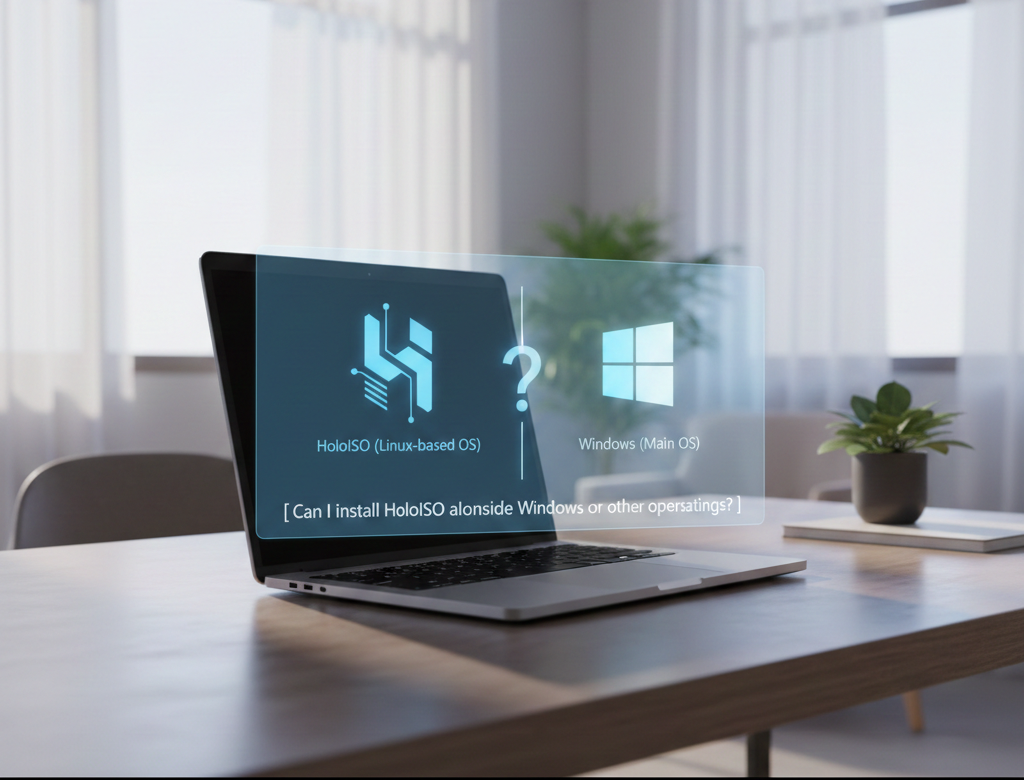
Many users wonder if HoloISO can coexist with their existing setup without causing conflicts. HoloISO is designed as a versatile Linux-based operating system optimized for gaming, especially for Steam Deck enthusiasts. Its installation process allows for flexible partitioning, making it possible to run HoloISO alongside Windows or other operating systems on the same device.
Before proceeding, it’s important to understand dual-booting basics, including partition management and bootloader configuration. With careful setup, HoloISO can complement your existing system, providing a seamless gaming-focused experience while keeping your other operating systems intact.
Understanding HoloISO
What is HoloISO?
HoloISO is a Linux-based operating system designed to deliver a Steam Deck–like gaming experience on PCs. It focuses on performance optimization, seamless gameplay, and a console-style interface that makes gaming simple and immersive.
Key Features of HoloISO
HoloISO includes pre-installed tools, gaming drivers, and Proton support to run Windows games. It combines a lightweight desktop environment with system optimizations that enhance speed, responsiveness, and stability.
Purpose and Target Audience
HoloISO is tailored for gamers who want a dedicated, high-performance gaming environment without the complexity of traditional Linux setups. Both beginners and experienced Linux users can benefit from its streamlined design.
Open-Source and Community-Driven
Being open-source, HoloISO encourages community contributions. Developers and users collaborate to improve the system, fix bugs, and suggest new features, ensuring continuous updates and innovation.
Advantages over Traditional Operating Systems
Unlike standard Linux distributions, HoloISO prioritizes gaming performance and user experience. It reduces system overhead, supports modern gaming hardware, and integrates gaming-focused software out of the box.
Dual-Booting Explained
What is Dual-Booting?
Dual-booting allows a computer to run two operating systems on the same device. With HoloISO, users can install the OS alongside Windows or another Linux distribution, giving the flexibility to switch between systems at startup.
Benefits of Dual-Booting HoloISO
- Access to Multiple OS: Use HoloISO for gaming and Windows for productivity or software not supported on Linux.
- Risk-Free Testing: Try HoloISO without removing your existing OS, preserving important files and settings.
How Dual-Booting Works
The process involves partitioning your storage drive, installing HoloISO on a separate partition, and configuring the bootloader to choose between operating systems at startup.
Preparing Your System
- Backup Important Data: Avoid accidental data loss.
- Check Disk Space: Ensure enough space for both operating systems and games.
- Create Installation Media: Use a USB drive or external storage for HoloISO installation.
Potential Challenges
- Bootloader conflicts or incorrect partitioning may prevent one OS from loading.
- Some hardware drivers may require manual configuration in HoloISO.
Tips for a Smooth Dual-Boot Setup
- Follow official HoloISO guides for installation.
- Keep your system updated to reduce compatibility issues.
- Test booting each OS after installation, before adding games or software.
Hardware Compatibility
Overview of Hardware Compatibility
HoloISO is designed to run on a wide range of PC hardware, ensuring that both desktop and laptop users can enjoy a Steam Deck–like gaming experience. Understanding compatible hardware helps users maximize performance, stability, and game compatibility.
CPU Compatibility
HoloISO supports modern AMD and Intel processors. While it can run on older CPUs, newer multi-core processors provide better performance for gaming and system responsiveness.
GPU Support
HoloISO is compatible with AMD, NVIDIA, and Intel graphics cards. Proper drivers are essential for smooth gaming, and the system includes optimized drivers for popular GPU models.
RAM and Storage Requirements
A minimum of 4GB RAM is required, but 8GB or more is recommended for optimal performance. SSDs are preferred over HDDs for faster boot times, game loading, and overall system responsiveness.
Laptop Compatibility
Gaming laptops running HoloISO benefit from power management and thermal optimizations. Most modern laptops are supported, though users should check GPU and CPU requirements for high-end gaming.
Desktop Compatibility
HoloISO works well with custom-built and pre-built desktops. It supports multi-monitor setups, various peripherals, and allows flexibility for system upgrades.
Peripheral and Controller Support
HoloISO supports a wide range of game controllers, keyboards, mice, and other accessories. Plug-and-play functionality ensures minimal setup for gaming peripherals.
Known Limitations
Some older hardware or very niche components may have limited support. Users are advised to check hardware compatibility lists and forums before installation to avoid potential issues.
Tips for Optimal Compatibility
Choosing modern CPUs, GPUs, and SSD storage ensures the best performance. Regular updates from HoloISO’s developer community improve support for new hardware over time.
Partitioning Your Drive
What is Drive Partitioning?
Partitioning is the process of dividing your hard drive or SSD into separate sections, called partitions, that the operating system can use independently. Each partition can host different operating systems, files, or applications, helping organize data efficiently and enabling dual-boot setups.
Why Partitioning is Important for HoloISO
When installing HoloISO, partitioning ensures the OS has its own dedicated space. This prevents overwriting existing data, allows for smooth system performance, and facilitates dual-boot configurations with Windows or other Linux distributions.
Types of Partitions
- Root Partition (/): Where the HoloISO system files are installed.
- Home Partition (/home): Stores user data, games, and settings separately from system files.
- Swap Partition: Acts as virtual memory, useful for systems with limited RAM.
- EFI Partition (for UEFI systems): Required for booting HoloISO on modern hardware.
Tools for Partitioning
- GParted: A graphical Linux partitioning tool.
- Disk Utility: Available in many Linux live environments.
- Command-Line Tools: fdisk or parted for advanced users.
Partitioning Tips for HoloISO
- Back up all important data before partitioning.
- Allocate sufficient space for the root and home partitions based on your usage.
- Ensure the swap partition size matches your system needs, especially for gaming or heavy workloads.
- Use the ext4 filesystem for Linux partitions for better performance and stability.
Dual-Boot Considerations
If you plan to install HoloISO alongside Windows or another OS, partition carefully to prevent overwriting existing installations. Shrink existing partitions if necessary and leave unallocated space for HoloISO.
Backup Recommendations
Importance of Backups
Before installing or updating HoloISO, it’s crucial to create backups of your important data. This ensures that personal files, game saves, and system settings remain safe in case of installation errors, hardware failure, or unexpected system issues.
Full System Backup
Consider creating a full system backup, including your current operating system and all installed applications. Tools like Clonezilla or Timeshift can help create an exact copy of your system, making it easy to restore if anything goes wrong.
Game and Data Backups
Regularly back up game files, saved progress, and configurations. For Steam users, cloud synchronization can help, but local backups provide extra security, especially for games that don’t support cloud saves.
Backup Storage Options
Store backups on reliable external drives, USBs, or network-attached storage (NAS). For critical files, consider keeping a second backup in a separate location to protect against hardware failure or theft.
Incremental and Scheduled Backups
Use backup tools that allow incremental or scheduled backups. This saves time and ensures that your most recent files are always protected without manually copying them each time.
Restoration Testing
After creating backups, test restoring files to verify their integrity. This ensures that your backups are reliable and can be used if a system restore is necessary.
Preparing Installation Media
Introduction to Installation Media
Before installing HoloISO, you need to prepare installation media, typically a USB drive or external storage device. This media will contain the HoloISO ISO file, allowing your PC to boot and install the operating system.
Downloading the HoloISO ISO File
Visit the official HoloISO website or trusted repositories to download the latest ISO version. Ensure the file is complete and verified to prevent installation errors or corruption.
Choosing the Right USB Drive
Select a USB drive with at least 8GB of storage. Ensure it is formatted correctly, and back up any important data, as the drive will be completely erased during preparation.
Creating Bootable Media
Use tools like Rufus (for Windows) or Etcher (cross-platform) to create a bootable USB from the HoloISO ISO. Follow the software prompts to select the ISO file and target USB drive.
Verifying the Bootable USB
After creating the installation media, safely eject and re-insert it to confirm it is recognized as a bootable device. Some tools provide a verification option to ensure the ISO was written correctly.
Ready for Installation
Once the installation media is prepared and verified, you can proceed to boot your PC from the USB drive and start installing HoloISO. Keep the media handy for future updates or system recovery.
Boot Loader Setup
What is a Boot Loader?
A boot loader is a small program that starts when your computer powers on. It loads the operating system into memory, allowing HoloISO to run. Common boot loaders for Linux-based systems like HoloISO include GRUB (GRand Unified Bootloader).
Default Boot Loader in HoloISO
HoloISO uses GRUB as its default boot loader, providing a user-friendly menu to select between HoloISO and other installed operating systems, making dual-boot setups seamless.
Configuring the Boot Loader During Installation
During HoloISO installation, users can choose where to install the boot loader—either on the main drive or a specific partition. Proper configuration ensures the system boots correctly every time.
Customizing Boot Options
HoloISO allows users to customize boot loader settings, including default OS selection, timeout duration, and kernel parameters for advanced performance or troubleshooting.
Troubleshooting Boot Loader Issues
Common issues like missing GRUB, boot failures, or incorrect OS detection can be resolved using live USB tools, GRUB repair utilities, or reinstallation of the boot loader.
Dual-Boot Considerations
When installing HoloISO alongside Windows or other Linux distributions, careful bootloader setup prevents conflicts, ensuring both operating systems remain accessible.
Updating the Boot Loader
HoloISO regularly updates GRUB through system updates, providing compatibility with new kernels, hardware, and fixes for known boot-related bugs.
Installation Process
Preparing for Installation
Before installing HoloISO, ensure your hardware meets the minimum requirements. Back up any important data from your system, especially if you plan to dual-boot with another operating system. Prepare a USB drive with at least 8 GB of storage for the installation media.
Downloading HoloISO
Visit the official HoloISO website or a trusted repository to download the latest ISO file. Verify the file’s integrity using checksums if provided, ensuring a safe and error-free installation.
Creating a Bootable USB Drive
Use tools like Rufus (Windows) or Balena Etcher (Linux/macOS) to create a bootable USB drive. Select the downloaded ISO file and follow the tool’s instructions to write it to the USB.
Booting from USB
Restart your PC and enter the BIOS/UEFI menu. Set the USB drive as the primary boot device and save the changes. The system should boot into the HoloISO live environment.
Installing HoloISO
Once in the live environment, run the HoloISO installer. Choose between a full installation or a dual-boot setup. Partition your drive carefully if installing alongside another OS. Follow the on-screen prompts to complete the installation.
Post-Installation Setup
After installation, remove the USB drive and restart your PC. Configure user accounts, system settings, and drivers. Update the system to the latest packages for optimal performance and stability.
Installing Additional Tools
Optionally, install additional gaming tools, software, or drivers to enhance your HoloISO experience. This ensures maximum compatibility with games and peripherals.
Post-Installation Configuration
Initial System Setup
After installing HoloISO, the first step is to configure basic system settings. This includes setting the language, time zone, keyboard layout, and creating user accounts. Proper setup ensures smooth system operation and a personalized experience.
Updating the System
HoloISO requires updating immediately after installation to ensure all packages, drivers, and security patches are current. Using the built-in update manager or terminal commands helps keep the system stable and optimized for gaming.
Graphics and Driver Configuration
To achieve optimal gaming performance, install and configure the appropriate GPU drivers for AMD, NVIDIA, or Intel graphics. Proper driver setup ensures better frame rates, compatibility with games, and smoother gameplay.
Game Platform Setup
HoloISO is designed for gaming, so setting up platforms like Steam is essential. Configuring Proton for Windows games, linking accounts, and adjusting in-game settings help maximize compatibility and performance.
Peripheral Configuration
Connect and configure controllers, keyboards, mice, and other peripherals. Testing these devices post-installation ensures they work properly with games and the HoloISO interface.
Performance Optimization
Adjust system settings to reduce resource usage, enable performance-enhancing features, and configure power management. This step helps ensure HoloISO runs efficiently on your hardware.
Backup and Recovery Setup
Setting up backup options protects your data and system configurations. Enabling snapshots or creating restore points allows you to recover quickly from potential issues or system failures.
conclusion
HoloISO can be safely installed alongside Windows or other operating systems, enabling a dual-boot setup for versatile use. This flexibility allows users to enjoy HoloISO’s optimized gaming experience without giving up their existing OS or files. By supporting coexistence with other systems, HoloISO ensures both convenience and security, making it an ideal choice for gamers and tech enthusiasts who want the best of both worlds on a single device.